
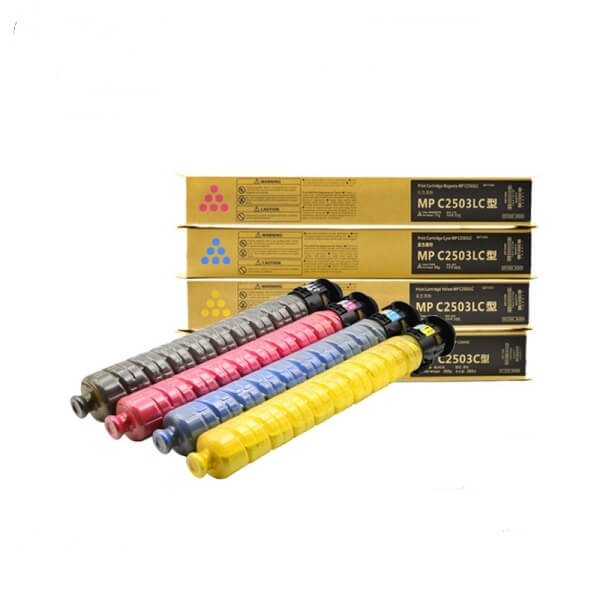
Ricoh MP C2004 Toner Cartridges
How to Replace Toner in a Ricoh MP C2004: A Step-by-Step Guide
The Ricoh MP C2004 is a centerpiece of many modern offices. While it is a sophisticated machine, replacing the toner is a straightforward process that anyone can handle. Follow this guide to ensure a clean, error-free replacement.
Before You Begin: Check Your Toner Levels
Your Ricoh MP C2004 will typically display a “Toner Low” or “Replace Toner” message on the Smart Operation Panel.
- Black (K): 841918
- Cyan (C): 841919
- Magenta (M): 841920
- Yellow (Y): 841921
Step-by-Step Replacement Process
1. Open the Front Cover
Locate the front panel of the Ricoh MP C2004 (just above the paper trays). Gently pull it toward you to reveal the four toner cartridges arranged horizontally.
2. Identify the Empty Color
The machine will indicate which color needs replacing (Black, Cyan, Magenta, or Yellow). Do not remove a cartridge unless the machine confirms it is empty, as this can sometimes cause sensor errors.
3. Remove the Old Cartridge
- Grasp the handle of the empty cartridge.
- Pull it straight out toward you.
- Tip: Keep the cartridge level to prevent any residual toner dust from spilling.
4. Prepare the New Toner Cartridge
- Remove the new Ricoh MP C2004 toner from its box.
- Important: Shake the cartridge horizontally 5–6 times. This loosens the toner powder inside, ensuring smooth flow and preventing “clogs” or faded prints.
- Remove the protective black or orange cap/seal if present.
5. Insert the New Cartridge
- Align the new cartridge with the correct color slot.
- Push it firmly and smoothly into the machine until it clicks into place.
- Ensure the cartridge is seated flush with the others.
6. Close the Front Cover
Close the panel gently. The Ricoh MP C2004 will automatically begin a “Toner Loading” cycle. This usually takes 60–90 seconds. Do not turn off the power during this process.
⚠️ Pro-Tips for Office Managers
- Avoid Spills: If toner gets on your hands or clothing, wash it off with cold water. Hot water will set the toner permanently into the fabric.
- Storage: Store your backup Ricoh MP C2004 cartridges horizontally in a cool, dry place. Storing them vertically can cause the powder to settle and clump at one end.
- Quality Matters: Using high-quality compatible Ricoh MP C2004 toner can save your business up to 50% in costs without affecting the life of your drum units—provided they use premium Japanese chemical toner.
Troubleshooting Common Issues
- “Toner Not Detected”: This usually means the chip on the cartridge isn’t communicating with the printer. Remove the cartridge, wipe the chip with a dry lint-free cloth, and re-insert.
- Faded Prints after Replacement: If your prints are still light, run the “Forced Toner Supply” or “Cleaning” cycle from the Maintenance menu on your touch screen.
Need High-Quality Ricoh MP C2004 Toner?
Don’t let high printing costs slow down your business. We offer premium, chip-compatible Ricoh MP C2004 toner cartridges with guaranteed page yields.
[Shop Ricoh MP C2004 Toner Sets] | [Get a Wholesale Quote for Your Office]

Leave A Comment