
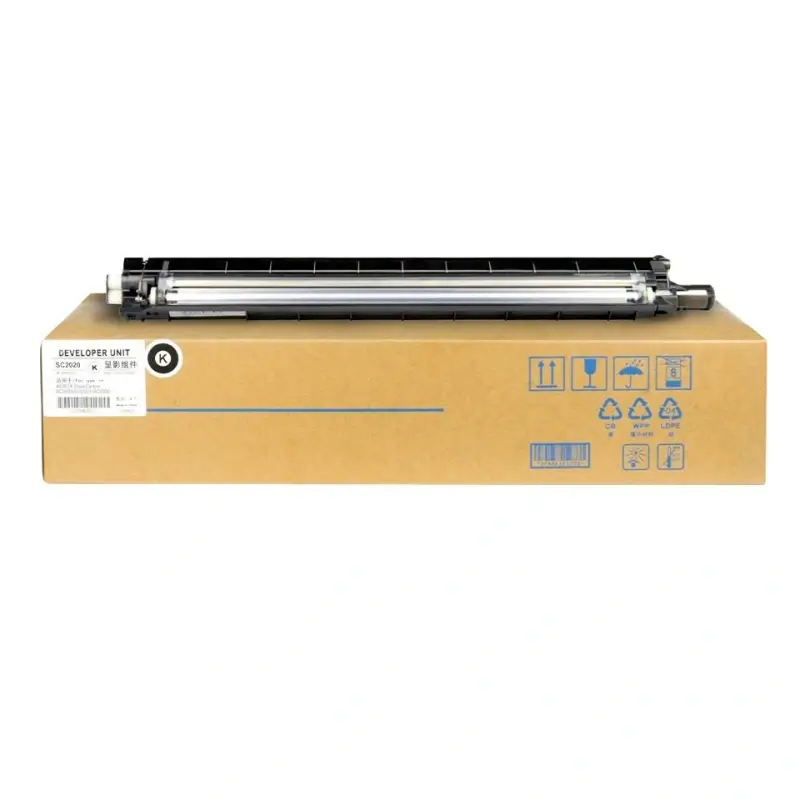
Xerox SC2020 Developer Unit
How to clear the “Replace Developer Unit” error message on a Xerox SC2020 copier?
Error Description:
After replacing the developer in the Xerox SC2020 printer’s developer unit with a compatible developer and installing the developer unit, the printer still prompts “Replace Developer Unit”, even though it continues to operate normally.
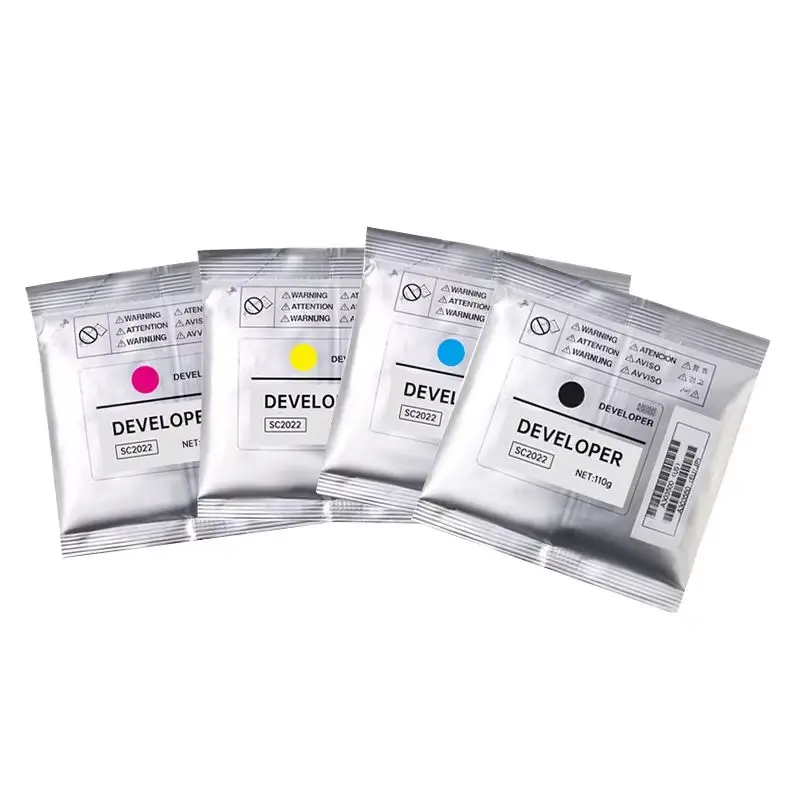
Xerox SC2020 Developer
Clearing the Error:
Press and hold the number 2 and 8 keys simultaneously, then turn on the printer. Enter the CE diagnostic code 885 at the startup screen.
Select “Printer Diag” and click OK.
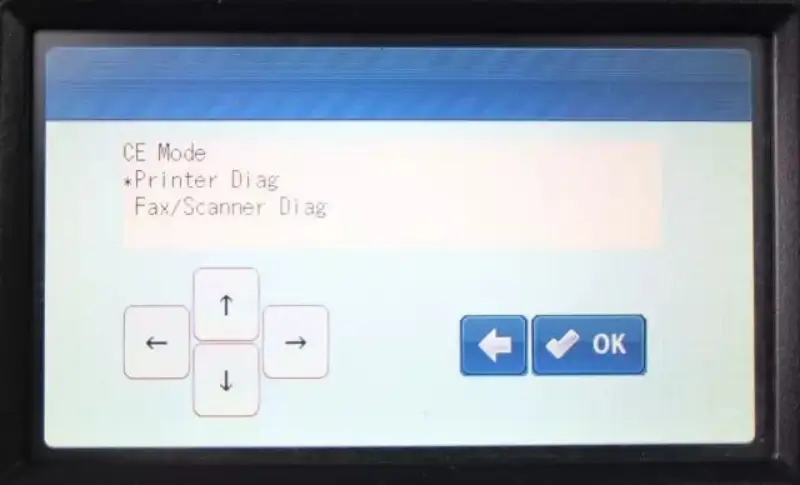
Click the down arrow, select “Parameter”, and click OK.
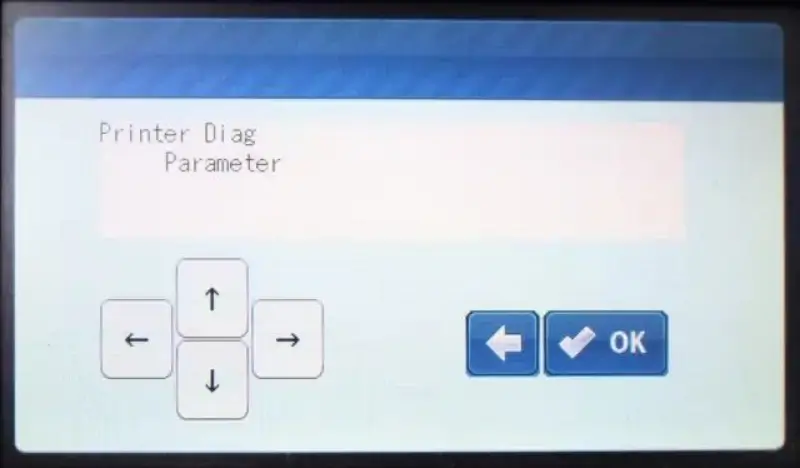
Click the down arrow, select “Life”, and click OK.
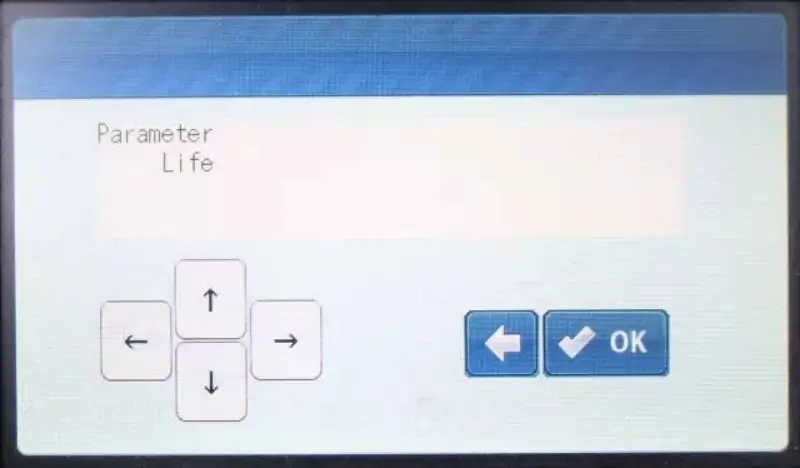
Click the down arrow, select “Deve HSG PV K”, and click OK.
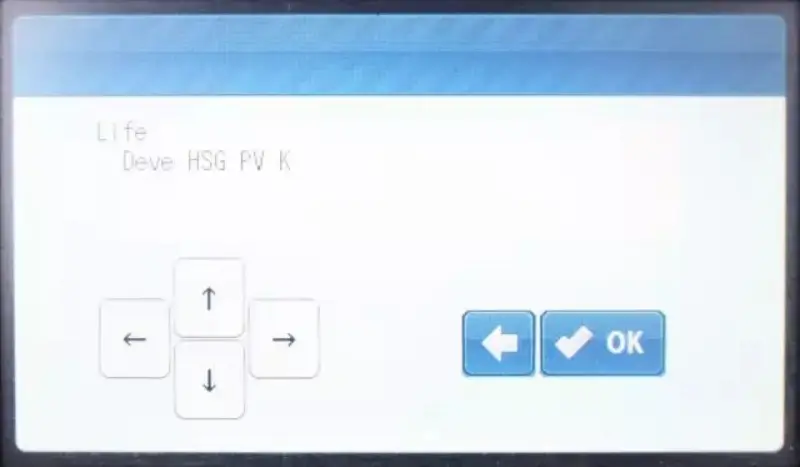
Click the down arrow, select “Initialized”, and click OK.
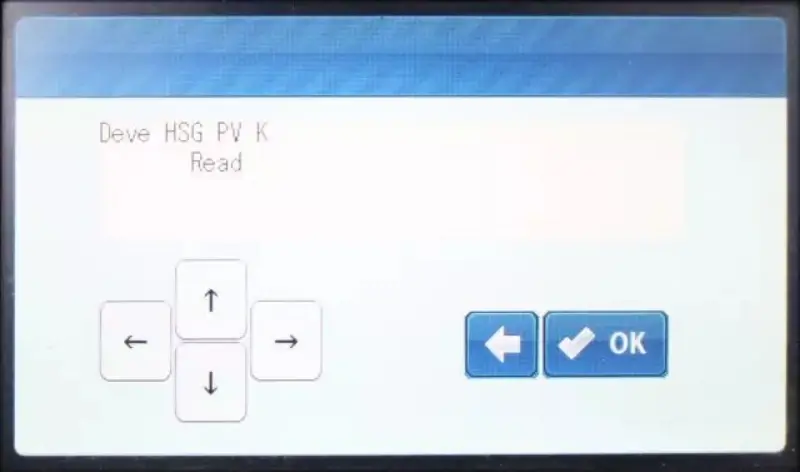
Turn off the power and restart the copier. The error message has been cleared, and the machine no longer prompt “Replace Developer Unit”.

Leave A Comment