
Solutions to the snowflake pattern problem on Kyocera printers
Troubleshooting for Snowflake-like White Spots and Distorted Black Blocks on Kyocera Printers.
1. Symptoms:
Kyocera printers print images with snowflake-like white spots and approximately 75% of the black blocks appearing distorted. See Figures 1 and 2 below for details.
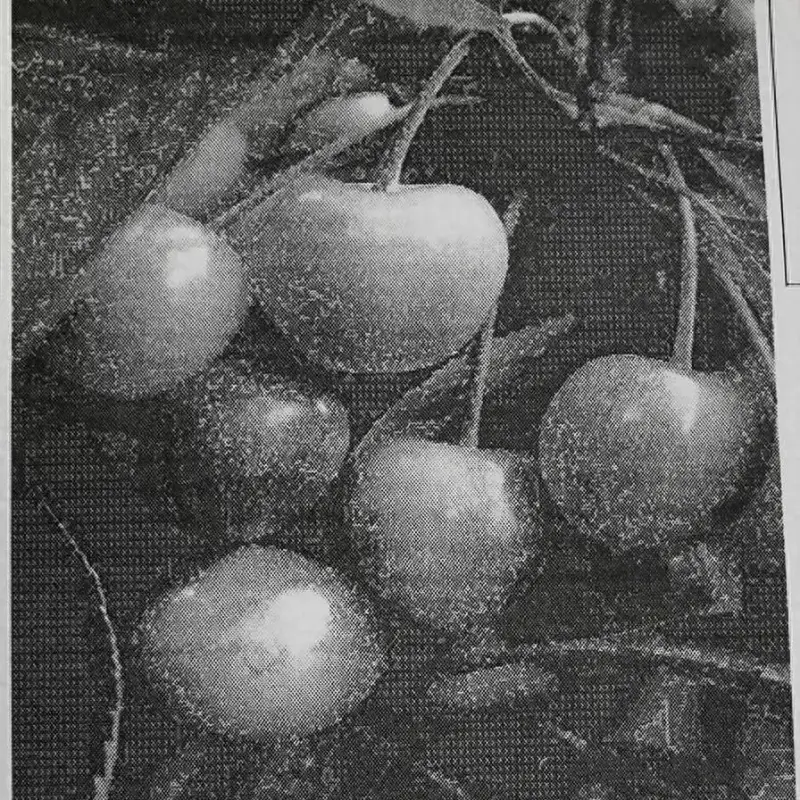
Figure 1: Snowflake-like white spots appear around the apple in the image.
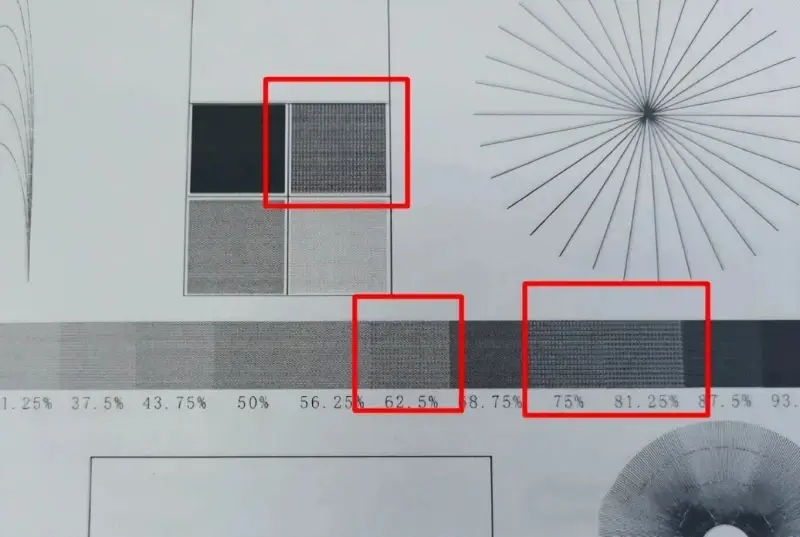
Figure 2: Approximately 75% of the black blocks are printed as numerous squares.
2. Causes:
a) The issue is ruled out as being caused by consumables (toner) or the machine itself.
b) The printing anomaly is determined to be caused by software issues.
3. Solution:
Locate the Kyocera printer in the printer driver panel on your computer.
Click on “Printing Preferences,” then click “Image Processing”.
Select “High Quality” from the “Print Quality” drop-down menu, then click “OK” in the lower right corner.
Exit and print again; the print should now be normal.

Leave A Comment