
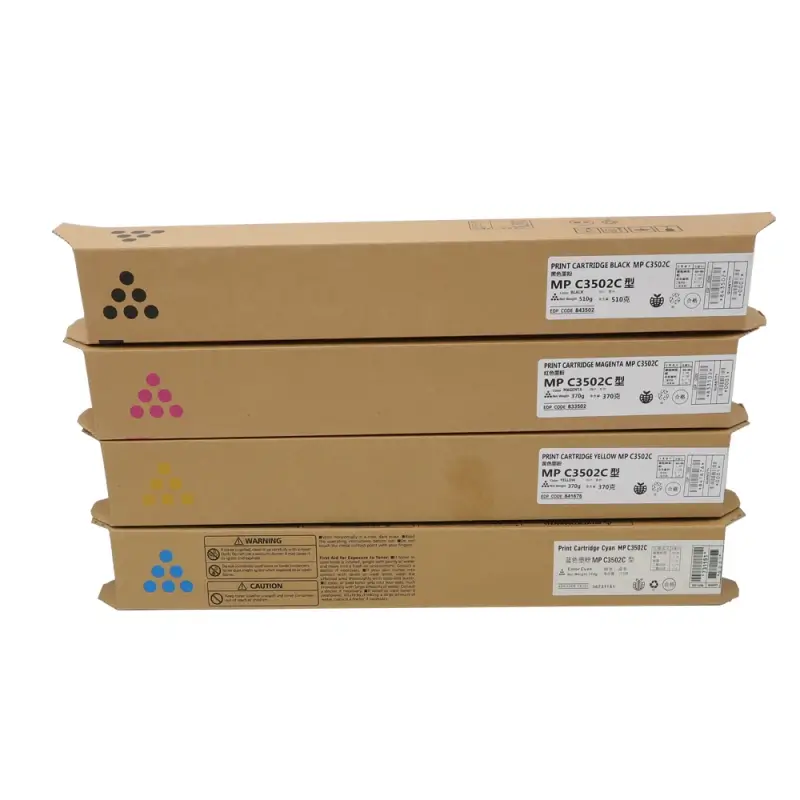
Ricoh MPC3502 Toner Cartridge
How to check the version of my Ricoh printer? How do I check the regional version of my Ricoh printer? Here are two methods to check the version of my Ricoh printer:
Method 1: Enter the machine’s maintenance mode to identify the version
Step 1: Simultaneously press the “Side Function Key” and “Detection Status Key” to enter the maintenance mode password screen.
Step 2: Press “Reset”, then “1”, then “4”, then “3”, then “C”, then press and hold “C” for a few seconds.
Step 3: After entering Engineer Mode, select the “System Sp” key and enter the operation code “5804#”. You will see that the current version is “EU”, indicating that the machine is a European version.
Method 2: Check the machine label (product code) to identify the version
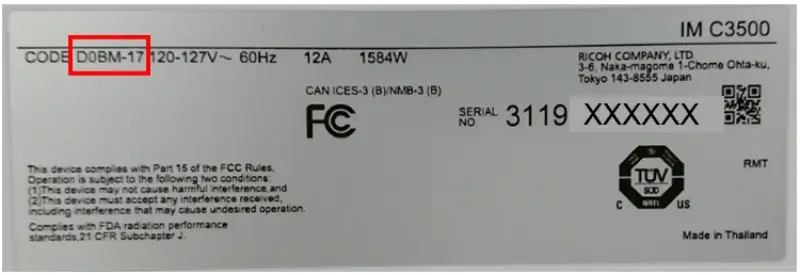
Find the label on the back of the machine and use the product code (in the red box below) to find the corresponding toner cartridge region code (see the table below) to confirm the machine version. In the image below, the product code is D0BM-17, the corresponding region (version) is NA/LA, and the corresponding toner cartridge is NA/AA.
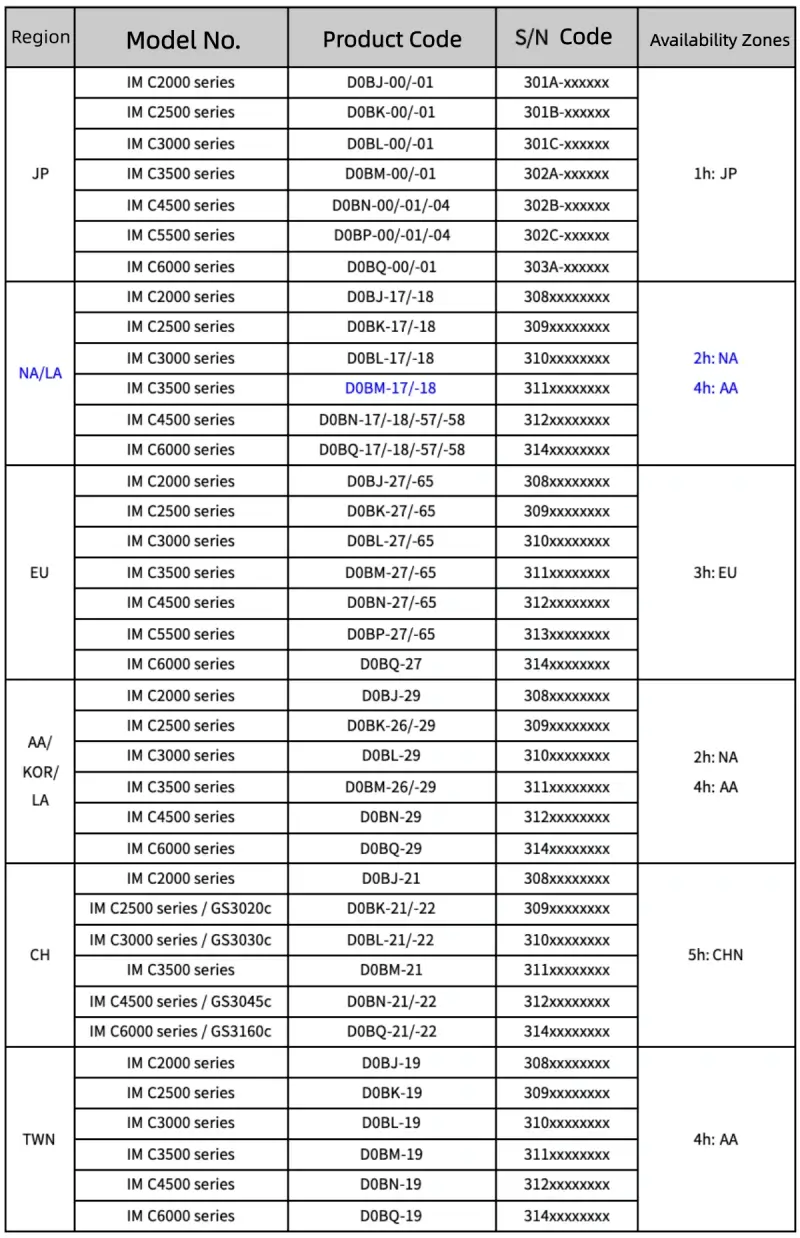
Note:
Different versions of the machine require the purchase of corresponding versions of toner cartridges, otherwise the machine will not work properly. KBT is toner cartridge manufacturer in China. If you need toner cartridges, please contact us.

Leave A Comment