
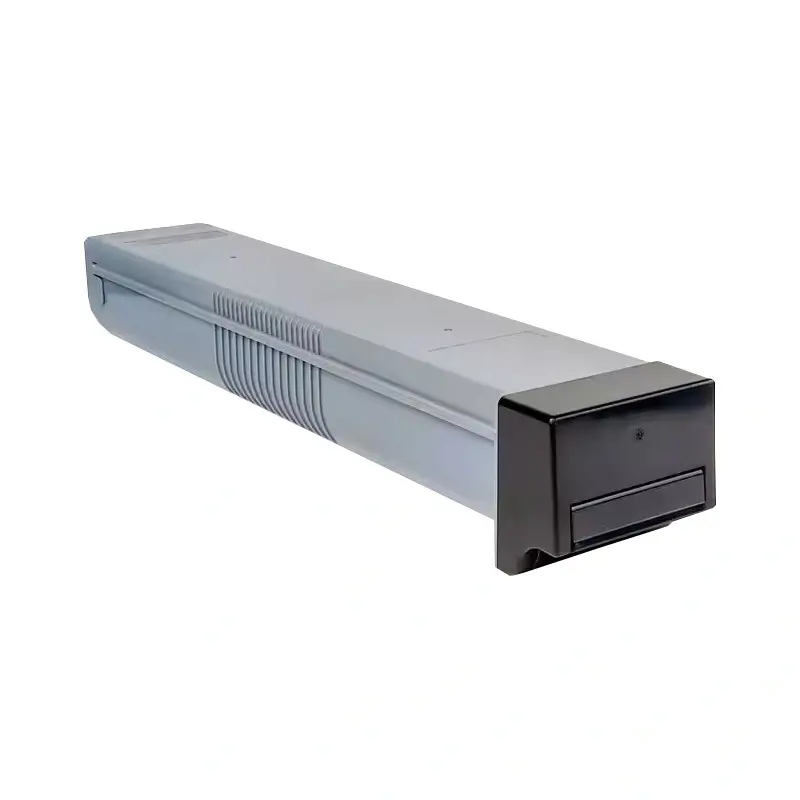
HP E72425 Toner Cartridge
How to enter service mode and initialize the developer on an HP E72425?
Here are HP E72425 E72430 Service Mode Entry and Developer Initialization Instructions.
Applicable Models:
HP LaserJet Managed MFP E72425 E72430 E72525 E72530 E72535 E77422 E77428 E78223 E78228 Service Mode Entry and Developer Initialization Instructions.
1. Service Mode Entry for HP E72425 E72430:
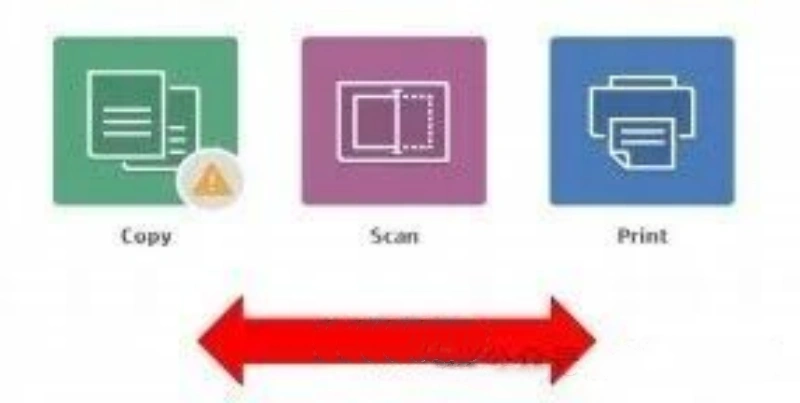
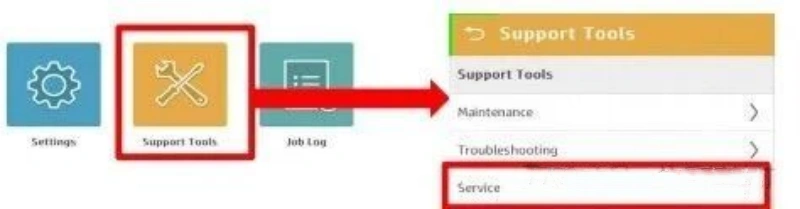
a. On the printer control panel, swipe left or right on the screen and select Support Tools–Service. The operation steps are shown in the following figure:
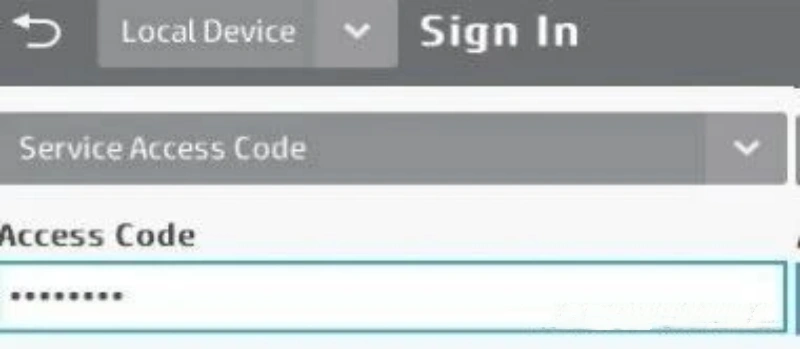
b. Enter different service passwords according to different machine models:
The following are the service passwords for several models; as shown below:
Service password interface as shown below: E72425dn/E72430dn
Service Password: 04072419 E72525dn/z E72530dn/z E72535dn/z
Service Password: 04072517 E77422dn E77428dn
Service Password: 04077419 E78223DN/E78228DN
Service Password: 04077419
2. HP E72425 E72430 Developer (TC) Initialization Procedure:
a. Open the front door and turn on the machine power.
b. Enter Service Mode: Follow the steps in step 1 to enter service mode.
c. Service Mode Interface: Information–Supply Status>–Field Replacement Unit–Development Unit. For color copiers, select the corresponding color developer initialization based on the different color developer or carrier being replaced. The image below shows the carrier initialization interface for both monochrome and color models.
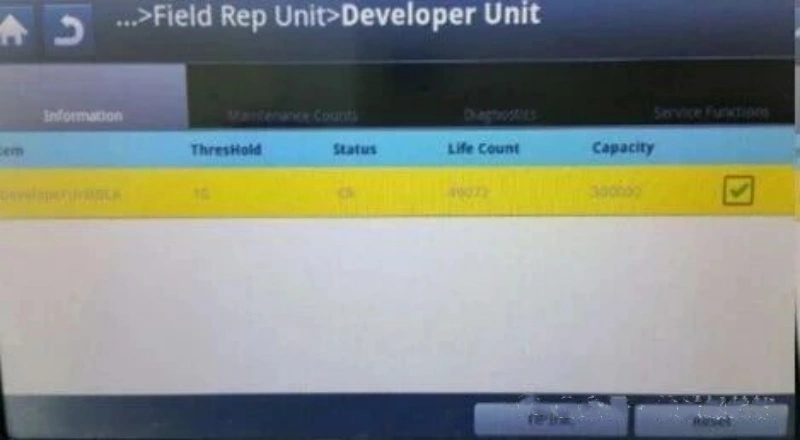
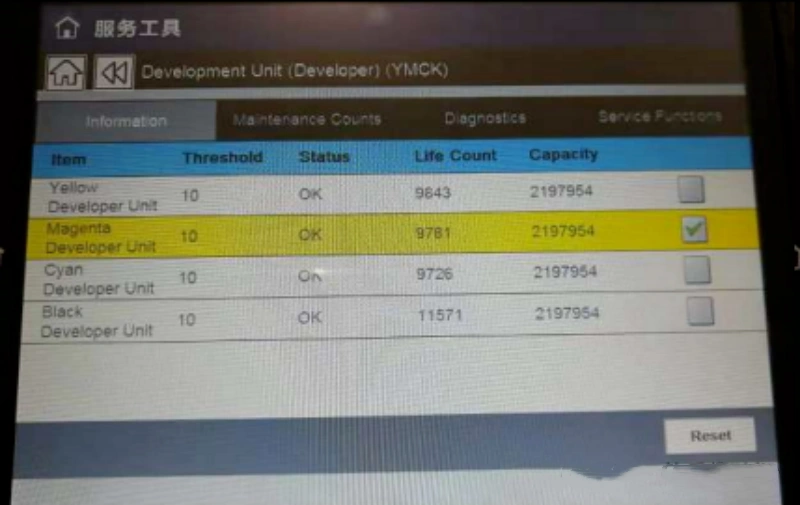
d. After the screen prompts you to close the front door, please close the front door. TC calibration will then begin. Please wait until the warm-up process is complete.
Note: Do not close the front door before step d.

Leave A Comment