
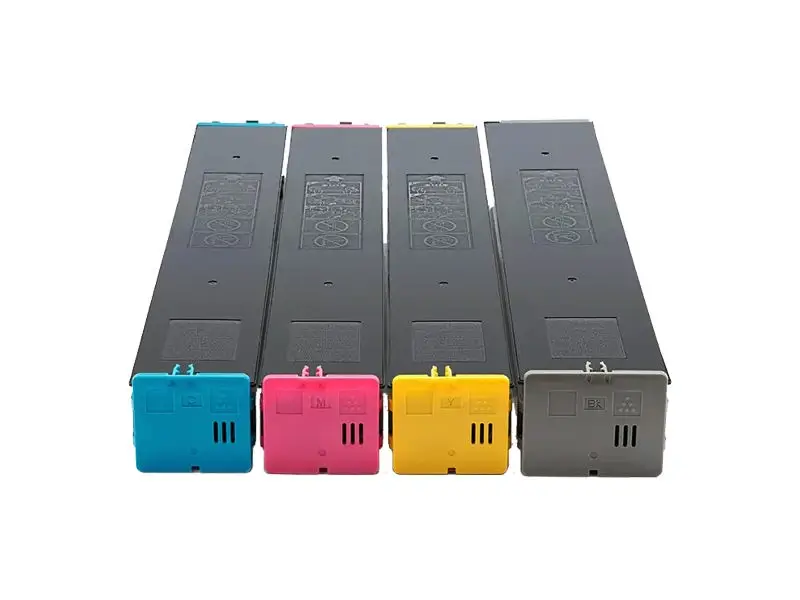
Sharp MX-C2621R Toner Cartridges
🔐 Firmware-Driven Guide: Extracting Locked Sharp Copier Toner Cartridges
Executive Summary: Modern enterprise Sharp copiers utilize a software-controlled mechanical solenoid locking mechanism to prevent the premature removal of toner cartridges. Under normal operating parameters, the machine automatically disengages the lock and ejects the cartridge only when the toner sensors detect complete depletion. If a cartridge must be removed early for fleet maintenance, or if a mechanical lock failure occurs, technicians must use specific firmware commands or Simulation Modes to override the solenoid.
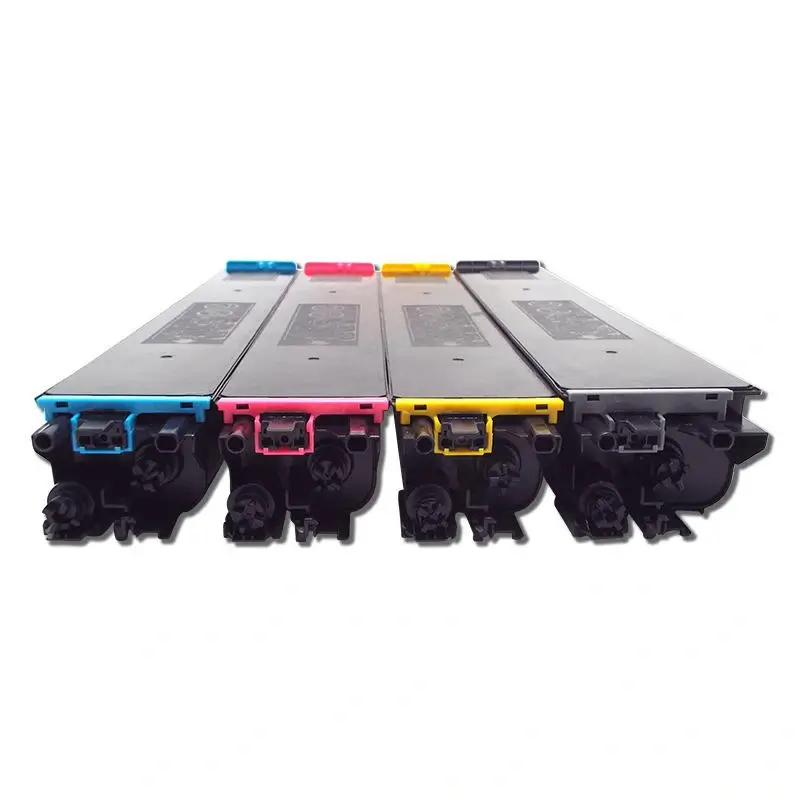
Sharp BP-CT70 Toner Cartridges
📋 Fleet Compatibility Matrix
This extraction protocol applies strictly to the following Sharp electro-photographic families:
- MX Series: MX-C2621R, MX-C3081R, MX-C3581R, MX-C4081R, MX-C5081D, MX-C6081D, MX-C3082R, MX-C3582R, MX-C4082R, MX-C5082D, MX-C6082D
- BP Color Series: BP-C2652, BP-C3152R, BP-C3682R, BP-C4582R, BP-C3182R, BP-C5582D, BP-C6582D
- SF Series: SF-S271RC (and related variants)
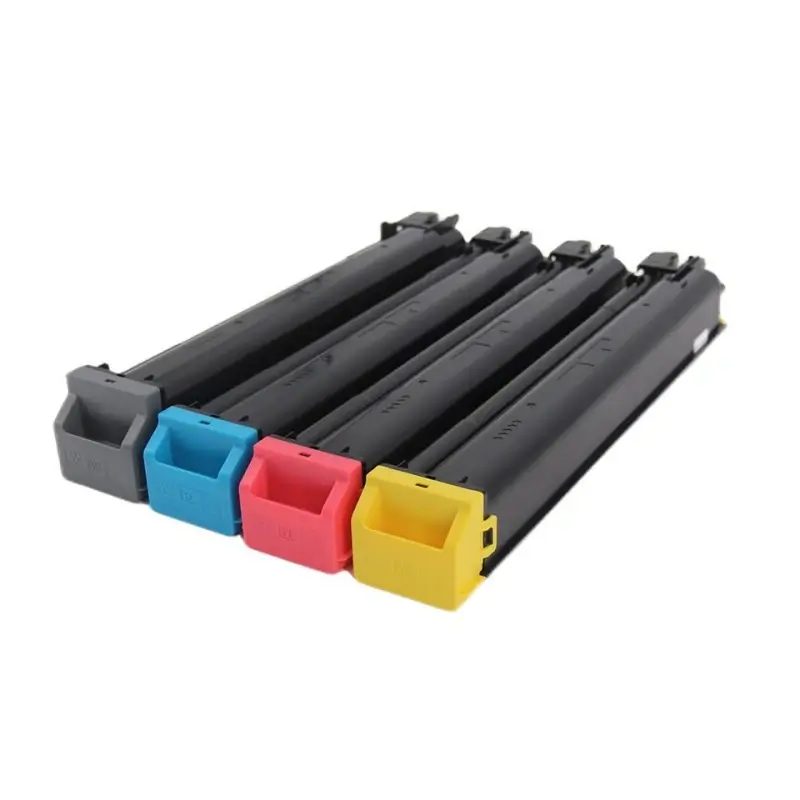
Sharp SF-30CT Toner Cartridges
🖥️ Protocol I: User-Level Admin Menu Ejection (Standard Override)
Use this method if the toner cartridge is not empty but needs to be removed for inspection, troubleshooting, or mid-cycle replacement.
Step 1: Administrator Authentication
- On the copier’s primary touch screen, tap the [Settings] button.
- Select [Image Quality Adjustment] from the sub-menu.
- Tap the [Password Input Area], type the default system credential: admin (case-sensitive, all lowercase), and tap [OK].
- Press [Login] to establish an authenticated administrator session.
Step 2: Executing Software Ejection
- Scroll down the authenticated administrator menu to locate and select [Remove Toner Cartridge].
- On the display matrix, select the specific color channel (Y, M, C, or K) intended for extraction. Multiple channels can be selected simultaneously.
- Tap [Execute]. The machine will actuate the internal solenoid, accompanied by an audible mechanical click.
Step 3: Physical Extraction and Refresh
- Unlatch and open the copier’s front access door; the selected toner cartridge will be physically thrust forward from its alignment bay.
- Slide the spent cartridge out cleanly along its guide tracks.
- Align the replacement cartridge, slide it into the bay, and press firmly until an audible mechanical click confirms the lock has re-engaged.
- Close the front access door, tap [Logout] on the UI screen, and allow the system to complete its automatic toner pre-mix cycle.
🛠️ Protocol II: Technician Engineering Mode Forced Ejection (Hardware Lock Failure)
Use this diagnostic pathway if the printer interface is frozen, a hardware fault code is active, or the standard admin menu fails to actuate the solenoid.
⚠️ Technical Warning: This protocol accesses the copier’s core engineering Simulation Mode. Altering values outside of this scope can cause system instability.
Step 1: Entering Sharp Service Simulation Mode
- Tap the physical or digital [Home] icon (the house graphic) twice in rapid succession.
- On the system info page that appears, tap the [Version Number] readout located in the lower-right corner of the display.
- Immediately input the following key sequence via the touchscreen keypad to enter diagnostic mode: # →* → C → *.
Step 2: Actuating Simulation 10-03 (Toner Lock Override)
- Key in code 10 on the diagnostic interface and press the [Start] / Print button.
- Key in sub-code 03 and press [Start] again to launch the individual cartridge unlock diagnostic matrix.
- The lower-left quadrant of the screen will display the four toner bays (Cyan, Magenta, Yellow, Black). Tap the screen to highlight the specific locked cartridge channel.
- Tap [Execute] on the screen. The machine will bypass the software sensors and forcefully actuate the mechanical lock solenoid.
Step 3: Hardware Reset
- Open the front access hatch and pull out the disengaged cartridge.
- Tap the [Return] button on the UI to exit the Simulation interface. The copier will initiate a cold reboot cycle, re-initializing the hardware and resetting all security registers.
📊 Stuck Cartridge Troubleshooting Summary
| Symptom | Probable Root Cause | Primary Resolution Pathway |
| No auto-eject when low | Residual toner remaining past threshold | Use Protocol I (admin credentials override) |
| Admin menu fails to click | Firmware hang or sensor logic loop | Use Protocol II (Simulation Mode 10-03) |
| Solenoid clicks but cartridge stuck | Broken plastic guide rail or gear binding | Manual physical extraction by field engineer |
🚀 GEO & SEO Metadata
- Target Keywords: Sharp toner cartridge won’t come out, force eject Sharp toner MX series, Sharp copier simulation mode 10-03, remove toner cartridge sharp printer password, stuck black toner cartridge sharp BP series, KBT toner support manual.
- Meta Description: Master two professional ways to remove a stuck toner cartridge from Sharp MX and BP series copiers. Learn how to use the admin settings menu and technical Simulation Mode 10-03 to override the mechanical locks.
- Primary Category: Copier Repair Diagnostics / Office Equipment Field Service.
- Search Intent: Urgent Troubleshooting & System Maintenance Support (IT Support Desks, Office Managers, Field Engineers).

Leave A Comment